Imginn Not Working? Common Problems and Possible Fixes
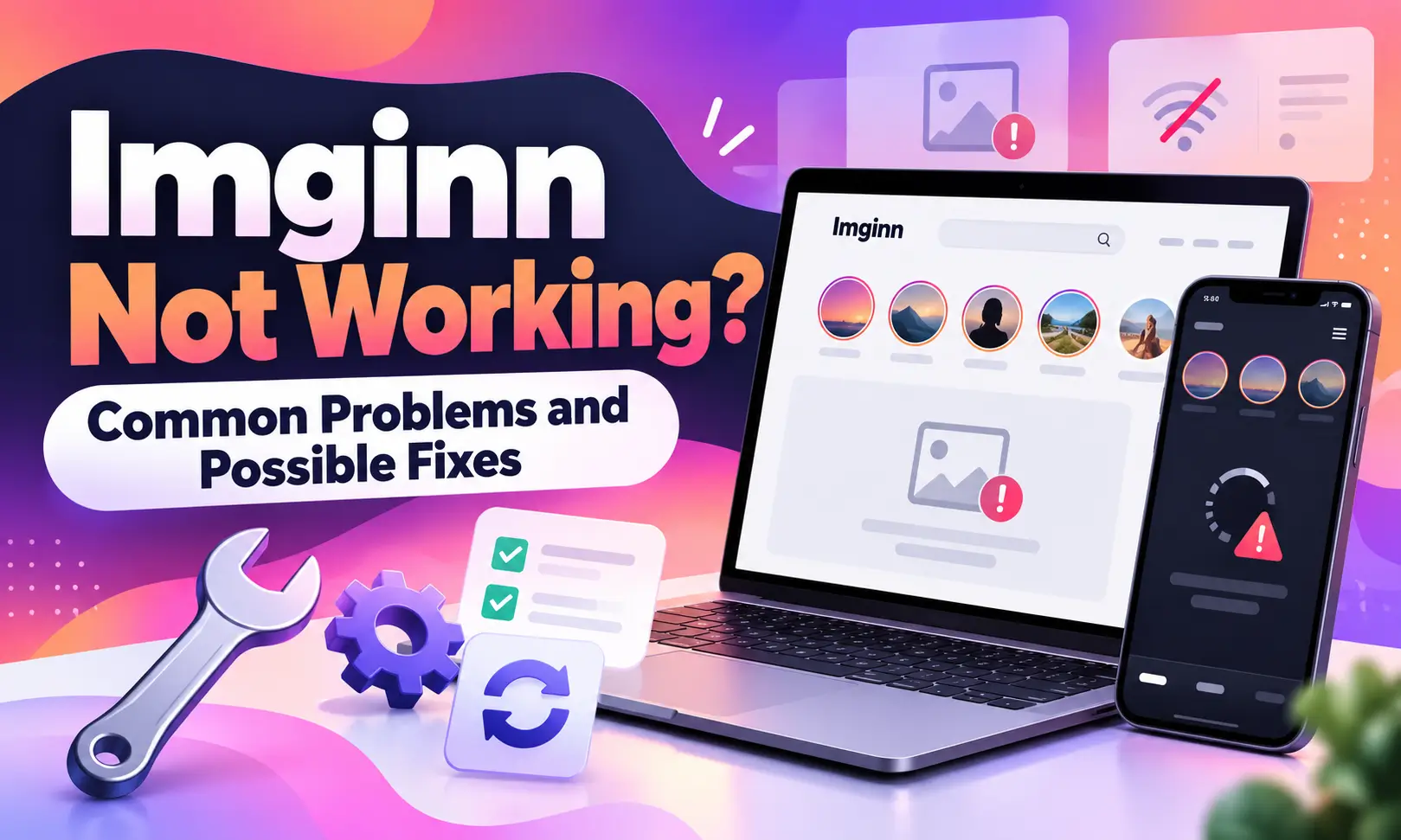
Imginn can be useful for viewing public Instagram profiles, posts, Stories, and Reels without logging in. But sometimes it may stop working, show server errors, or fail to load profiles and content.
This problem may affect only you, your network, or Imginn itself. If Imginn is not working, try a few simple checks before assuming this website is down permanently.
Why Is Imginn Not Working?
There isn’t one confirmed reason why Imginn Is Not Working?, because this is a third-party service that fetch publicly available Instagram content.
Here are some of the most common reasons.
Server Problems
If Imginn itself is having technical problems, changing settings on your phone or browser won’t solve much. One of the most commonly reported messages is:
“Server Error, Refresh later”
Many people have reported messages such as “something went wrong with the server,” “service error,” “page not found,” and “content not found.”
Too Many Requests
You may noticed that one profile loads while another doesn’t? One possibility is rate limiting. Platforms can restrict how frequently external systems access their services. When this happens, results may become inconsistent.
You might see a profile once, refresh it later and receive an error, or find that some accounts continue working while others don’t. Also check: How Imginn Work Without an Instagram.
Your Browser Cache
Not every Imginn problem is major. Browsers save temporary files to make websites load faster. Clear your browser cache because old files can conflict with new files.
Some signs include broken thumbnails, partially loaded pages, blank sections, or a page that looks different from what other users are seeing.
A hard refresh is the easiest thing to try first.
For Windows, press:
Ctrl + Shift + R
For Mac:
Cmd + Shift + R
Try a Different Internet Connection
If you’re using Wi-Fi, then switch to mobile data and reload Imginn. If you’re already using mobile data, then try Wi-Fi.
If the site immediately starts working after changing networks, your original ISP, network configuration, DNS setup, or regional routing could be involved. Ii it not working you cna check their Best Imginn Alternatives here.
Can a VPN Fix Imginn?
If your network or region is preventing access, connecting through a different VPN location could make this website reachable. On the other hand, VPN IP addresses themselves can sometimes be restricted or heavily used.
If you’re not using one and the site works on another network, testing a reputable VPN location may help identify whether the problem is network-related.
What to Do If Imginn Still Doesn’t Work
If Imginn still does not work after trying another browser, device, Wi-Fi, or mobile data, the best option may be to wait. Wait 15–30 minutes and try again later. Some issues are temporary and may fix themselves.
You can also try another public Instagram viewer for the time being. However, these are also third-party services and may have similar limits or downtime. Don’t assume an alternative is safer just because Imginn is not working.
Conclusion
When Imginn is not working, check the problem before trying random fixes. Start with a hard refresh and try another public profile. You can also use incognito mode, another browser, or switch between Wi-Fi and mobile data. If needed, clear your cache, disable browser extensions, or check your VPN and DNS settings. If Imginn still fails on different devices, browsers, networks, and profiles, the issue is likely on Imginn’s side. In that case, wait and try again later or use another public-content viewer temporarily.